

How to Turn Any Photo into a Paint by Numbers Canvas
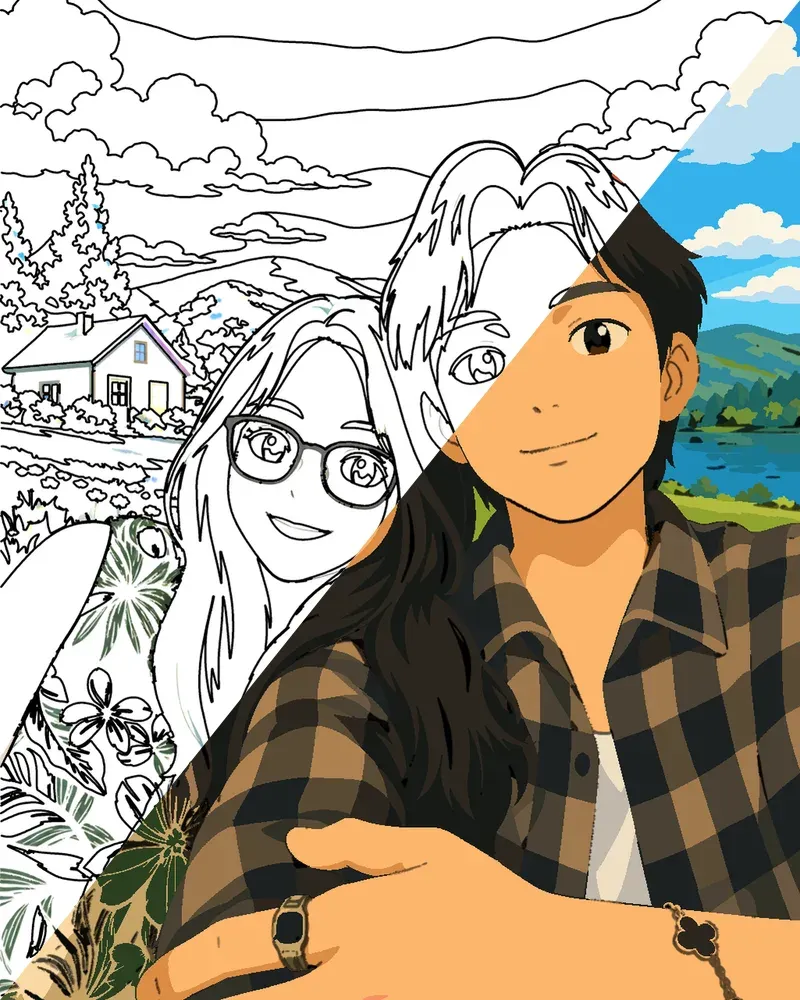
A ready-made paint by numbers picture is lovely. One made from your own photo is something else: your dog asleep on the sofa, the beach from last summer, your grandparents on their wedding day, slowly coming back to life under your brush.
This guide covers what makes a photo work well as a paint by numbers, and how to turn one into a canvas you can paint on your iPhone or iPad with Brushee.
What a custom paint by numbers actually is
Every paint by numbers picture is a drawing split into small, numbered areas, with a palette where each number matches one colour. To make one from a photo, the picture is simplified into flat shapes of colour, the outlines are drawn, and each shape gets the number of its colour.
The hard part is the simplifying. Done badly, a face turns into a puzzle of tiny, meaningless blobs. Done well, you get clean shapes that are a pleasure to fill and still look like the person, pet or place in the photo once you’re finished.
Which photos make the best paint by numbers
Some photos turn into beautiful canvases; others fight you all the way. A few things make a big difference:
- One clear subject. A single pet, one or two people, or one view. A crowd or a cluttered table gives you a canvas full of tiny areas with no clear picture.
- Good, even light. Daylight from a window or outdoors is ideal. Very dark photos, harsh flash and strong backlight lose detail in the shadows.
- Close enough to see faces. For people and pets, the face should fill a good part of the picture. A face that is only a few pixels wide can’t keep its expression.
- Sharp, not blurry. A photo that is in focus where it matters gives cleaner outlines.
- A simple background. A plain wall, sky, grass or water is easy to paint and lets the subject stand out.
Faces, pets and landscapes are the classic favourites, and for good reason: they’re the photos people most want to keep.
How to turn a photo into a paint by numbers in Brushee
Brushee’s AI Studio does the whole conversion for you, right in the app:
- Pick a photo. Open AI Studio and choose a photo from your library: your pet, your family, a favourite place.
- Choose a style. Storybook gives a soft illustrated look, Movie Magic a bright animated one, and Anime a hand-drawn one. Your photo is redrawn in that style first, which is what turns it into clean, paintable shapes.
- Paint it. A few minutes later your canvas is waiting in your Library under My AI Canvases. Paint it like any other Brushee picture, one brush stroke at a time.
AI Studio is part of Brushee Pro. Your photos stay yours: they’re kept with your account, never shown to other people or used for ads, and deleting a canvas deletes its photo. The Privacy Policy has the details.
Ideas for your first custom canvas
Not sure where to start? These make lovely first pictures:
- Your pet’s best portrait. The one where they’re looking straight at the camera. It makes a lovely present too: see our guide to a custom pet paint by numbers as a Christmas gift.
- A travel memory. A coastline, a mountain view or a street you loved.
- A family photo. Paint it as a quiet tribute, or as a gift you can share once it’s finished.
- Your home or garden. Something you see every day looks new once you have painted it yourself.
Tips for painting a photo canvas
A canvas made from your own photo can have more detail than a simple drawing, so take your time with it. Pinch to zoom in for the small areas around eyes and hands, start with the big background shapes to warm up, and don’t feel you have to finish in one go. Your progress is saved, so you can come back to it tomorrow.
New to paint by numbers altogether? Our tips for your first picture are a good place to start.